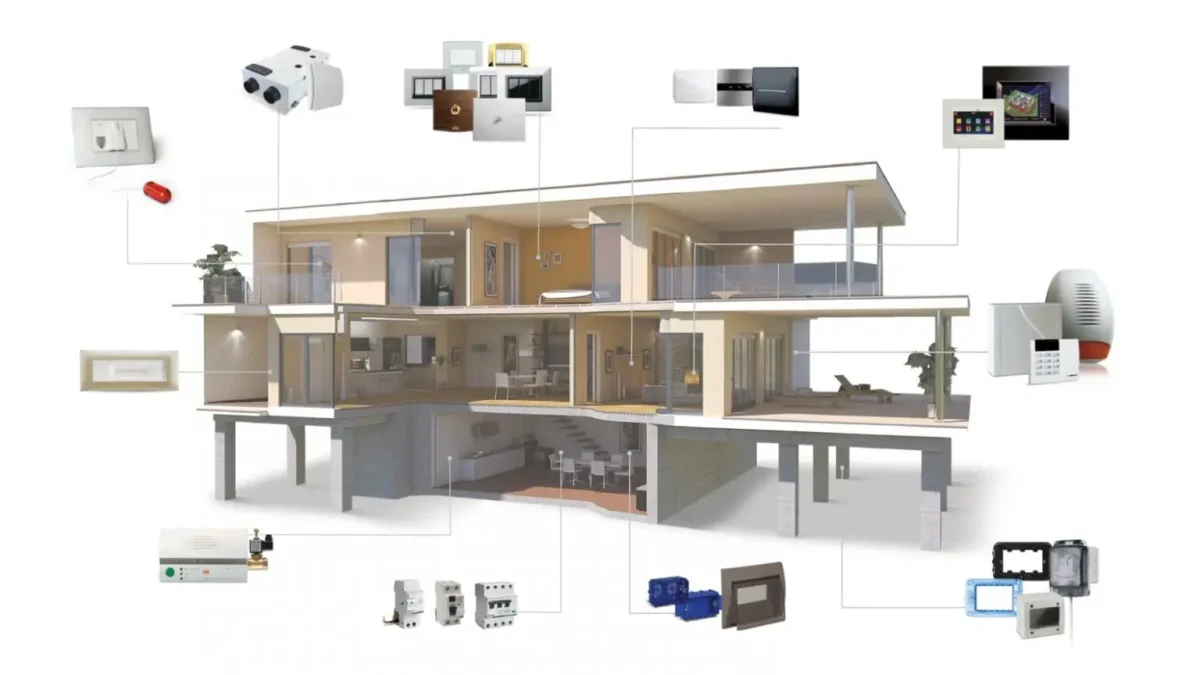
A reliable home Wi-Fi network is one of the most important parts of a modern smart home.
From video doorbells and security cameras to smart lighting, speakers and heating controls, connected devices depend on a stable network to communicate properly.
Unfortunately, poor Wi-Fi coverage can cause frustrating problems. Cameras may disconnect, smart plugs may become unresponsive and devices at the far end of your property may struggle to stay connected.
In this guide, we’ll explain how to build a reliable home Wi-Fi setup for your smart home, what equipment you might need and how to solve common connectivity problems.
1. Why Your Smart Home Needs Good Wi-Fi
Every connected device places some demand on your home network.
A few smart plugs might not make much difference, but adding multiple cameras, streaming devices, speakers and other connected equipment increases the demands on your router.
A reliable network helps provide:
- Consistent connections between devices.
- Reliable camera live feeds.
- Faster communication with smart home systems.
- Fewer disconnections.
- Better performance when multiple people are online.
Remember that internet speed and Wi-Fi coverage are different things. You can have a fast broadband package but still experience poor wireless coverage in certain rooms.
2. Choose the Right Router
Your broadband provider will usually supply a router, but the included equipment may not provide the coverage or features you need.
When comparing routers, consider:
- Wi-Fi 6 or newer wireless standards.
- Dual-band or tri-band operation.
- Gigabit Ethernet ports.
- Security update support.
- Guest network functionality.
- Parental controls and device management.
Wi-Fi 6 can help networks manage multiple connected devices more efficiently, although your devices also need to support compatible standards to benefit.
For many homes, a good modern router is a sensible starting point before investing in additional equipment.
3. Understand 2.4GHz and 5GHz Wi-Fi
Many smart home devices support 2.4GHz Wi-Fi, while newer phones, computers and streaming devices may also use 5GHz.
There are important differences between the two bands.
2.4GHz
Advantages:
- Generally better range.
- Often performs better through walls.
- Widely supported by smart home devices.
Disadvantages:
- More susceptible to interference.
- Fewer non-overlapping channels.
- Usually offers lower speeds than 5GHz.
5GHz
Advantages:
- Higher potential speeds.
- More available channels.
- Often less congested than 2.4GHz.
Disadvantages:
- Shorter range in many environments.
- More easily weakened by walls and obstacles.
Some modern routers also support 6GHz through Wi-Fi 6E or Wi-Fi 7 equipment.
Before buying a smart device, always check which wireless bands it supports. Some devices require a 2.4GHz connection during setup.
4. Is a Mesh Wi-Fi System Worth It?
If your property has Wi-Fi dead zones, a mesh Wi-Fi system may be worth considering.
Mesh systems use multiple wireless units to extend coverage around your home.
Instead of relying on one router to cover everything, additional nodes help distribute the connection into areas that would otherwise receive a weak signal.
Mesh Wi-Fi can be particularly useful for:
- Larger houses.
- Multi-storey properties.
- Homes with thick walls.
- Garden offices.
- Security cameras positioned away from the router.
Position mesh nodes carefully. Placing one inside an existing dead zone may not solve the problem because it still needs a good connection back to the main system.
Where possible, Ethernet backhaul can provide a more reliable connection between mesh units.
5. Where Should You Position Your Router?
Router placement can make a surprisingly big difference.
For better coverage:
- Place the router in a relatively central position.
- Keep it elevated rather than hidden on the floor.
- Avoid placing it inside cupboards.
- Keep it away from large metal objects.
- Avoid positioning it beside sources of interference.
- Leave space around the equipment for ventilation.
If your router is tucked behind a television or hidden inside a cabinet, moving it into a more open position may improve coverage.
6. Should You Use Ethernet Instead of Wi-Fi?
Wi-Fi is convenient, but a wired connection can be better for devices that need consistent connectivity.
Ethernet is particularly useful for:
- Desktop computers.
- Network video recorders.
- Smart home hubs with Ethernet ports.
- Network storage devices.
- PoE security cameras.
- Mesh systems supporting wired backhaul.
Power over Ethernet (PoE) is especially useful for certain security cameras because a compatible Ethernet cable can provide both network connectivity and electrical power.
This can reduce the need for separate power supplies at camera locations.
7. Secure Your Home Network
Your router is the gateway to your connected home, so protecting it is essential.
Follow these basic security practices:
- Change default administrator credentials.
- Use WPA2-AES or WPA3 security where supported.
- Create a strong Wi-Fi password.
- Keep router firmware updated.
- Disable unnecessary remote administration.
- Review connected devices regularly.
- Use a guest network for visitors.
Some routers also support separate IoT networks or VLANs.
These can help isolate smart devices from computers and personal devices, although they need to be configured correctly to avoid breaking communication between devices that need to work together.
8. Create a Separate Network for Smart Devices?
As your smart home grows, you may want to separate connected devices from your main home network.
For example, you could have:
- Main network for computers and phones.
- IoT network for smart plugs, bulbs and sensors.
- Guest network for visitors.
This can improve network organisation and provide additional security boundaries.
However, some smart home products rely on local network discovery and communication. Separating devices without allowing the necessary traffic can cause problems with apps, hubs and automation platforms.
Start with your router’s supported options and check compatibility before making changes.
9. Common Smart Home Wi-Fi Problems
Smart device won’t connect
Check whether the device requires 2.4GHz Wi-Fi, confirm the password and make sure the signal is strong enough.
Security camera keeps disconnecting
Check the signal at the camera location. Moving a mesh node, improving router placement or using a wired connection may help.
Smart bulbs become unresponsive
Check whether the bulbs are connected directly to Wi-Fi or use a separate hub. Also check that the hub has a stable network connection.
Wi-Fi is slow in certain rooms
Test the signal in different areas of your home. A mesh system or wired access point may help improve coverage.
Too many devices connected
Review your router’s device list and check whether the equipment can comfortably handle your network requirements.
10. A Sensible Wi-Fi Setup for a Smart Home
A practical home network might include:
Basic setup
- Modern broadband router.
- Secure Wi-Fi password.
- Reliable 2.4GHz coverage.
- Ethernet for important fixed equipment where practical.
Larger home setup
- Modern Wi-Fi 6 or newer router.
- Mesh Wi-Fi units.
- Ethernet backhaul where possible.
- Guest network.
- Separate IoT network if supported.
Advanced setup
- Dedicated router and access points.
- Managed network switches.
- VLANs for network separation.
- PoE for compatible cameras and access points.
- Network monitoring and regular updates.
You don’t need an advanced networking setup to enjoy a smart home. Start with reliable coverage and build from there.
Final Thoughts
A good Wi-Fi network makes a significant difference to the reliability of your smart home.
Before spending money on more connected devices, make sure your existing network can support them.
A suitable router, sensible equipment placement and additional mesh coverage where needed can help prevent many common smart home connectivity problems.
At SmartHomeNest UK, we’ll continue exploring home networking, smart technology and practical ways to build a more connected home.
SmartHomeNest UK – Smarter Living. Safer